Connect ClickHouse
Experimentation is in beta.
Flagsmith writes experiment events to a table in your ClickHouse instance and computes experiment results by querying it there. Each environment has one warehouse connection.
Before you start
- On Flagsmith Cloud, a Scale-Up or Enterprise subscription.
- An instance reachable from Flagsmith: on Flagsmith Cloud, over the internet; when self-hosting, from your Flagsmith API and warehouse delivery.
- An administrative user with
CREATE USER,GRANT,CREATE DATABASEandCREATE TABLEprivileges, to run the setup SQL. - When self-hosting, the event ingestion service, Kafka and warehouse delivery. See Self-Hosting and Open Source.
1. Create the events table and user
Run this once against your instance. Replace <USER> and <YOUR_PASSWORD> with your own values. The same SQL is
available to copy from the Flagsmith dashboard.
-- ClickHouse schema for experimentation events.
CREATE DATABASE IF NOT EXISTS flagsmith_exp;

CREATE TABLE IF NOT EXISTS flagsmith_exp.events
(
    environment_key      LowCardinality(String),
    event                LowCardinality(String),
    feature_name         LowCardinality(String),
    timestamp            DateTime64(3),
    collected_at         DateTime64(3),
    identifier           String,
    value                String                          CODEC(ZSTD(3)),
    traits               String                          CODEC(ZSTD(3)),
    metadata             String                          CODEC(ZSTD(3)),
    sdk_language         LowCardinality(String),
    sdk_version          LowCardinality(String),

    INDEX idx_identity identifier TYPE bloom_filter GRANULARITY 4,

    CONSTRAINT environment_key_not_empty CHECK environment_key != '',
    CONSTRAINT event_not_empty           CHECK event != '',
    CONSTRAINT timestamp_sane            CHECK timestamp > toDateTime64('2020-01-01 00:00:00', 3)
)
ENGINE = MergeTree
PARTITION BY toYYYYMMDD(timestamp)
ORDER BY (environment_key, event, feature_name, timestamp, identifier);
-- Create a dedicated user for Flagsmith
CREATE USER IF NOT EXISTS <USER>
    IDENTIFIED WITH sha256_password BY '<YOUR_PASSWORD>';

-- Allow it to write and read experiment events
GRANT SELECT, INSERT ON flagsmith_exp.events TO <USER>;

-- Allow it to check the events table exists
GRANT SHOW TABLES, SHOW COLUMNS ON flagsmith_exp.* TO <USER>;
If you use a database other than flagsmith_exp, use the same name in the script and in Flagsmith.
Flagsmith doesn't create or alter the table, so keep exactly these columns and types.
2. Connect in Flagsmith
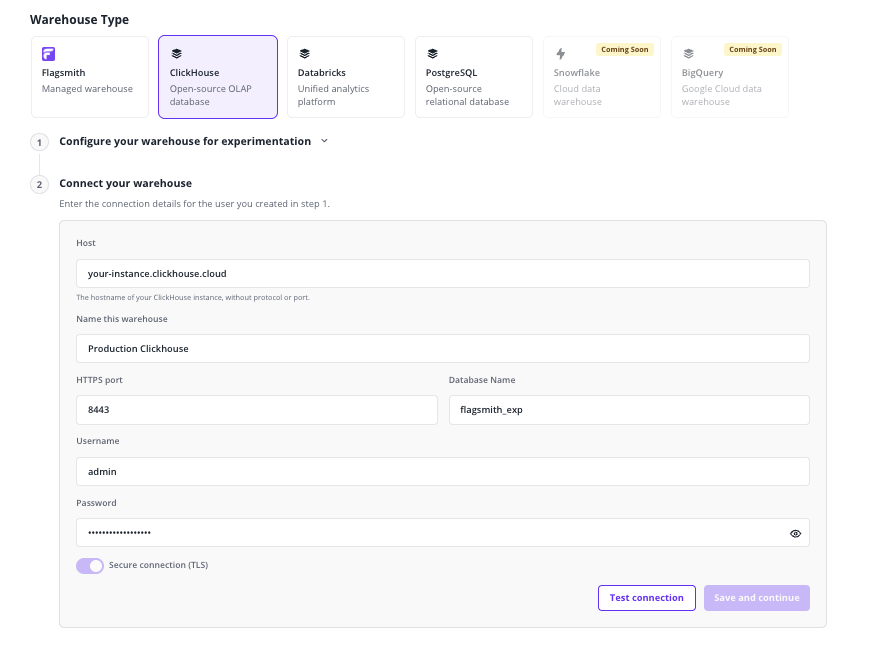
- Go to Environment Settings › Warehouse and select ClickHouse.
- Fill in the connection details:
- Host: the hostname of your ClickHouse instance, without protocol or port.
- Name this warehouse: any name, e.g.
Production ClickHouse. - HTTPS port: the port of the ClickHouse HTTP(S) interface,
8443by default. - Database Name:
flagsmith_exp, unless you changed it. - Username and Password: the user you created in step 1.
- Secure connection (TLS): always on; it can't be turned off.
- Click Test connection. Once it succeeds, click Save and continue. The test checks that Flagsmith can connect and that the events table exists. If the test can't connect, you can save anyway and test again later, but events won't be delivered until it succeeds. If Flagsmith rejects a field, such as the host, fix it before saving.
- On Flagsmith Cloud, to verify events reach your table, click Send your first event on the connection card; the button disappears once the first event arrives.
Manage the connection
Change the password
Edit the connection, enter the new password, click Test connection, then click Save changes. Leaving the password blank keeps the current one.
Change server
The host can't be changed. To use a different ClickHouse instance, disconnect and create a new connection.
Troubleshooting
Errors show under a form field, below Test connection, or on the connection card with status Errored when event delivery fails.
| Message | Where | What to do |
|---|---|---|
| Port must be a number between 1 and 65535. | Form | Fix HTTPS port. |
| Host must not target internal or private network addresses. | Test, card | On Flagsmith Cloud, use a host with a public address. |
| Authentication failed. | Test, card | Check Username and Password. |
| Database does not exist. | Test, card | Check Database Name, and that it matches the database in the setup SQL. |
| Events table not found in the configured database. Run the setup SQL to create it. | Test, card | Run the script in step 1 with the same database as the connection. |
| Could not connect to the host. | Test, card | Check Host and HTTPS port, and that the instance accepts HTTPS connections from Flagsmith. |
| The ClickHouse server rejected the request. | Test, card | Check the instance's logs for the rejected query, and that the user has the grants in step 1. |
| Connection failed. | Test, card | Contact support. |